Official manual · App Store verification

ShadowrocketSetup Guide

Shadowrocket is a paid Apple-platform app for iPhone and iPad. Start by verifying the official App Store listing, then import your own server details and configure rule-based routing as needed. The app is sold as a one-time purchase.

Global Routing Subscribe On Demand

INTERFACE / CAPABILITIES

From connections to rule-based routing

Shadowrocket workflows usually start with server details you already have: import them, choose a connection mode, then verify the result with tests and logs. The six sections below follow the typical workflow. Select a section in the left-hand navigation to read more.

Rule-based routing

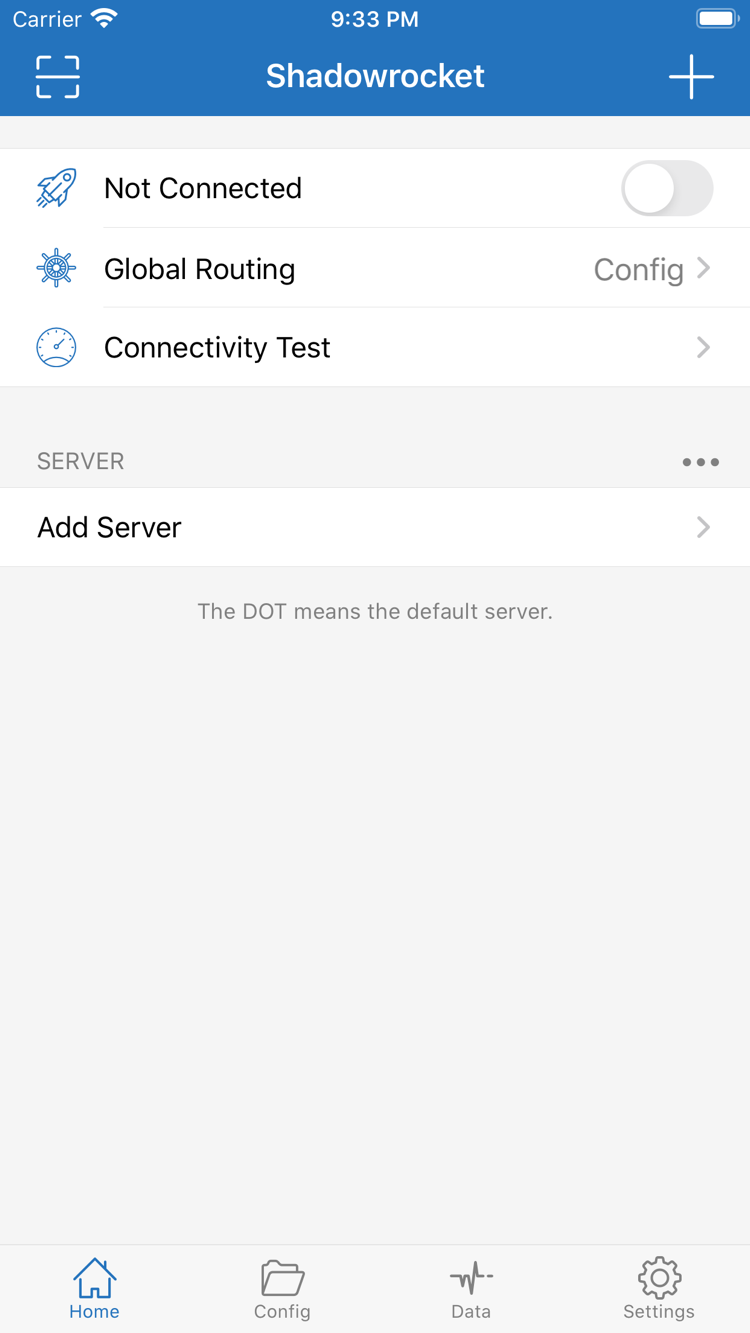
In Home, select Config under Global Routing to route requests according to the rules in the active configuration file. DOMAIN-SUFFIX matches a domain and its subdomains; IP-CIDR handles address ranges. Matching requests follow policies such as PROXY, DIRECT, or REJECT. Rule order affects the outcome, so check FINAL for requests that do not match another rule. If a site is routed unexpectedly, first confirm which Config is selected, then review its rules and policies. The connection toggle alone does not tell you whether routing is working as intended.

DOMAIN-SUFFIX,example.com,PROXY
IP-CIDR,192.168.0.0/16,DIRECT
DOMAIN,blocked.example.com,REJECT
FINAL,PROXY

Config, Proxy, and Direct are three different Global Routing modes. Config routes requests according to configuration rules, Proxy sends requests through the selected proxy, and Direct connects without one. When troubleshooting, note the current mode and compare the same request across modes. Switching modes can help narrow down the cause, but it does not replace checking server details and rule contents. For the full workflow covering subscription updates, manual entry, and server organization, see the Server Management Guide.

DEVICES / APP STORE

Getting started by device

This guide focuses primarily on iPhone and iPad. Before purchasing, open the App Store product page and verify the developer, app icon, and app ID. Check the App Store listing for system requirements and device compatibility.

iPhone

After verifying the App Store product page, purchase and open Shadowrocket. When you connect for the first time, the system may ask permission to add a VPN configuration. Once authorized, import your own server details. If you have already purchased the app, check your purchases under the same Apple ID; availability and listing details are shown in the App Store.

View the iPhone guide →

iPad

If you use the same Apple ID, first check whether the App Store shows the app in your purchase history, then follow the on-screen prompts. The iPad layout may differ from the iPhone layout, but the steps are the same: verify the listing, import your existing configuration, choose Global Routing, and test the connection. Check the App Store listing for purchase eligibility.

View the iPad guide →

Mac and Apple TV are also listed under compatibility on the same App Store product page. Check the listing for system requirements and purchase eligibility.

QUICKSTART / THREE STEPS

A setup sequence for existing configurations

The steps below assume you already have your own subscription link or server details. Establish and test one connection first, then add routing rules and On Demand conditions as needed. This makes troubleshooting easier than changing several settings at once.

  1. 01 / IMPORT

    Add a server or subscription

    Open Home and use Add Server to enter your existing Type, Host, Port, and other details. If you have a subscription link, add it in Subscribe and update it. Return to the SERVER list to confirm the entry appears, then select the one you want to test. An entry appearing in the list does not mean it can connect: verify the import first, then test the connection.

  2. 02 / ROUTING

    Choose Global Routing

    For an initial test, choose one routing mode explicitly. Config uses the rules in the configuration file; Proxy sends requests through the selected proxy; Direct lets you check direct connection behavior. If you plan to use custom rules, first check their order and FINAL in Config, then return to Home and confirm that Global Routing is set to Config.

  3. 03 / CHECK

    Connect and verify

    Turn on the connection toggle in Home and approve the VPN configuration when prompted. Then use Connectivity Test to check the current connection, and review actual requests, Data, or Diagnostics. If the test fails, switch back to a network condition you know works, then check the server fields and routing settings in order. Avoid changing multiple parameters at once.

When importing via QR code or clipboard, first make sure the source is your own existing configuration. After import, verify each key field. Once connected, read about On Demand if you want connections to respond automatically to network conditions. To maintain multiple subscriptions over time, give each source a distinct name and note how the list changes after updates. For the complete screen-by-screen walkthrough, see the full guide.

Read the full guide →

APP STORE / VERIFICATION

Verify the listing with facts you can check

Search results may show similar names or icons. Before purchasing, open the App Store product page and verify the developer, app icon, and app ID in the URL together. Do not rely on the search result title alone.

01 / DEVELOPER

Verify the developer

The developer shown on the product page should be Shadow Launch Technology Limited. Confirm the full name, then check the icon and page address. This site is the official Shadowrocket website and official manual. Purchases and prices follow the App Store product page.

02 / ARTWORK

Verify the app icon

Official Shadowrocket app icon from the App Store

Compare the icon with the one shown on the App Store product page. The icon is one of three verification details and should not be used on its own. If the store listing changes, rely on the current product page.

03 / APPLICATION ID

Verify the app ID

Shadowrocket's app ID is 932747118, and the product page URL contains id932747118. Check this number alongside the developer name and app icon. If you open the App Store link from this page, you can also check the address and product details after it opens to confirm you are viewing the correct store listing.

Purchases, account region, and redownloads

Shadowrocket is a paid commercial app sold as a one-time purchase. The US storefront lists it at about $2.99; the current App Store listing determines the actual price, currency, and eligibility. Store details may differ by account region, so check the product page opened with your own account before purchasing. To use the app on another device or reinstall it, check your App Store purchase history using the Apple ID used for the original purchase. The App Store listing determines purchase eligibility and system requirements for iPhone, iPad, and other compatible devices. App updates are also handled through the App Store.

Keep app purchases separate from connection service

Buying the app ≠ buying a server plan. Purchasing Shadowrocket gives you the app; it does not provide server details. The import steps apply only if you already have your own subscription or server details. This site does not provide, sell, or recommend servers or subscriptions. If a connection fails, check four separate things: whether the app was purchased, whether a configuration was imported, whether the server can connect, and whether a rule matched. Verify each one instead of treating purchase status as connection status.

View the complete App Store verification guide →

NEXT / QUESTIONS & READING

Find guidance by symptom

Importing, connecting, and routing are separate steps. Identify where the problem occurs, then read the relevant guide. This is usually more effective than repeatedly switching settings.

Is the list empty after adding a subscription? Check that the link is complete and the update finished, then verify that the returned content can be recognized. See troubleshooting →

Is the toggle on, but traffic is routed incorrectly? Check Global Routing in Home, confirm the selected Config, and review its rule policies. Read the settings guide →

How do you restore a purchase on a new device? Check the App Store purchase history for the Apple ID used to buy the app, and review the current storefront prompts. See how to restore a purchase →

Recent articles

View all articles →

Shadowrocket battery drain in the background: Should you enable On Demand?

Start with how battery usage is reported. Distinguish a persistent connection from On Demand rules and speed tests, then decide whether to enable it for your usage.

Read article →

Shadowrocket WireGuard setup: How to enter Private Key, Peer, Allowed IPs, and MTU

Using your existing WireGuard details, learn what each field under Interface and Peer does and what to check when entering it.

Read article →

Entering Trojan server details in Shadowrocket: Address, Port, Password, SNI, and Allow Insecure

Where Trojan TLS settings go in Add Server, and common mistakes when entering Host, Port, password, and SNI.

Read article →

Field examples in this article are for explaining where to enter information. Always use your own server details. If a setting has a different name or location in your version of the interface, follow what the app displays. This site provides usage guidance; check the App Store product page for purchase information, system requirements, and device compatibility.